Gitops란?
- GitOps는 Git 저장소를 단일 진실의 소스(Single Source of Truth)로 삼아서 인프라와 애플리케이션의 모든 구성을 코드로 관리하고 자동화하는 방식
- 기본적으로 Git에 변경사항을 커밋(Push)하면, 그 내용이 자동으로 인프라에 적용되도록 구성함
- CI/CD와 결합해 배포의 반복작업을 크게 줄여주며, 배포 과정을 명확하게 이력으로 남길 수 있음
GitOps의 장점
- 가시성: 변경 이력과 현재 상태를 Git에서 모두 추적할 수 있음
- 보안성: 코드 기반 접근으로 권한 관리와 리뷰 프로세스가 강화됨
- 자동화/효율성: 수동 운영 이슈 최소화, 실수 감소
- 멀티클러스터 일관성: 여러 Kubernetes 클러스터를 일관된 관리
GitOps의 단점
- 초기 구축 난이도: GitOps 파이프라인을 직접 구축하려면 구성/학습 부담이 존재
- 복잡한 충돌 관리: 실제 리소스 상태가 Git과 다를 때 자동 복구/조정이 까다로울 수 있음
- Git 저장소·보안 의존도: Git 저장소/접근 권한 이슈 발생 시 관리의 전체 흐름이 중단될 수 있음
Windows Host 기준으로 스터디 환경 구성
Linux 환경에서의 Docker Image 빌드와 구성은 이전에 자주 수행해봤기 때문에, Windows Host 환경에서 GitOps 환경을 구성해보았다. K8S를 기반으로 Harbor와 같은 서비스를 구성하기 위해 WSL을 사용하였다.
간단한 구성도는 아래와 같다.
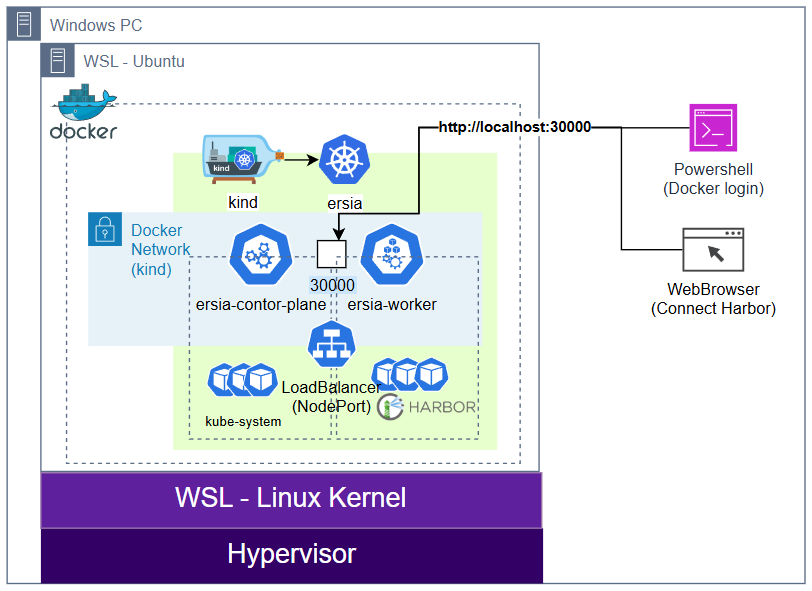
- Host PC에서 이미지를 빌드하고 push할 수 있도록 구성하였다.
- Windows 베이스 이미지가 용량이 크기 때문에 편의를 위해 로컬에 Private Image Registry인 Harbor를 구성하였다.
WSL 구성
WSL 최초설치
# DISM(배포 이미지 서비스 및 관리) 명령어로 Microsoft-Windows-Subsystem-Linux 기능을 활성화
dism.exe /online /enable-feature /featurename:Microsoft-Windows-Subsystem-Linux /all /norestart

# DISM 명령어로 VirtualMachinePlatform 기능을 활성화
dism.exe /online /enable-feature /featurename:VirtualMachinePlatform /all /norestart

# wsl 설치
wsl --install

# 기본값 WSL 2 버전 설정
wsl --set-default-version 2

# wsl 업데이트
wsl --updateWindows 재부팅 후 Powershell을 관리자 권한으로 실행
wsl --install Ubuntu-24.04

PS C:\Windows\System32> wsl --install Ubuntu-24.04
Downloading: Ubuntu 24.04 LTS
Installing: Ubuntu 24.04 LTS
Distribution successfully installed. It can be launched via 'wsl.exe -d Ubuntu-24.04'
Launching Ubuntu-24.04...
Provisioning the new WSL instance Ubuntu-24.04
This might take a while...
Create a default Unix user account: ersia
New password:
Retype new password:
passwd: password updated successfully
To run a command as administrator (user "root"), use "sudo <command>".
See "man sudo_root" for details.

ersia@DESKTOP-O4EPQ9T:/mnt/c/Windows/System32$Kind 구성 (WSL 진입 후 실행)
# docker 설치
root@DESKTOP-O4EPQ9T:~# curl -fsSL https://get.docker.com -o get-docker.sh
root@DESKTOP-O4EPQ9T:~# sh ./get-docker.sh
# Executing docker install script, commit: 86415efcfe5f8d966625843da41a0f798238cce5

WSL DETECTED: We recommend using Docker Desktop for Windows.
Please get Docker Desktop from https://www.docker.com/products/docker-desktop/
...
WARNING: Access to the remote API on a privileged Docker daemon is equivalent
         to root access on the host. Refer to the 'Docker daemon attack surface'
         documentation for details: https://docs.docker.com/go/attack-surface/

================================================================================

root@DESKTOP-O4EPQ9T:~#
root@DESKTOP-O4EPQ9T:~# docker version
Client: Docker Engine - Community
 Version:           28.5.1
 API version:       1.51
 Go version:        go1.24.8
 Git commit:        e180ab8
 Built:             Wed Oct  8 12:17:26 2025
 OS/Arch:           linux/amd64
 Context:           default

# k8s 관리 툴 및 kind 설치
systemctl stop apparmor && sudo systemctl disable apparmor
apt update && sudo apt-get install bridge-utils net-tools jq tree unzip kubectx kubecolor -y

# Install Kind
curl -Lo ./kind https://kind.sigs.k8s.io/dl/v0.30.0/kind-linux-amd64
chmod +x ./kind
sudo mv ./kind /usr/local/bin/kind
kind --version

root@DESKTOP-O4EPQ9T:~# kind --version
kind version 0.30.0

# Install kubectl
curl -LO "https://dl.k8s.io/release/$(curl -L -s https://dl.k8s.io/release/stable.txt)/bin/linux/amd64/kubectl"
chmod +x kubectl
sudo mv ./kubectl /usr/bin
sudo kubectl version --client=true


# Install Helm
curl -s https://raw.githubusercontent.com/helm/helm/master/scripts/get-helm-3 | bash
helm version

# Source the completion
source <(kubectl completion bash)
echo 'source <(kubectl completion bash)' >> ~/.bashrc

# Alias kubectl to k
echo 'alias k=kubectl' >> ~/.bashrc
echo 'complete -o default -F __start_kubectl k' >> ~/.bashrc

# Install Kubeps & Setting PS1
git clone https://github.com/jonmosco/kube-ps1.git
echo -e "source $PWD/kube-ps1/kube-ps1.sh" >> ~/.bashrc
cat <<"EOT" >> ~/.bashrc
KUBE_PS1_SYMBOL_ENABLE=true
function get_cluster_short() {
  echo "$1" | cut -d . -f1
}
KUBE_PS1_CLUSTER_FUNCTION=get_cluster_short
KUBE_PS1_SUFFIX=') '
PS1='$(kube_ps1)'$PS1
EOTKind 상세설명 : [Study][K8S Network] KIND (Kubernetes IN Docker) — 나무늘보의 IT생활
Kind로 기본 실습용 클러스터 생성
# Create a cluster with kind
kind create cluster --name ersia --image kindest/node:v1.32.8 --config - <<EOF
kind: Cluster
apiVersion: kind.x-k8s.io/v1alpha4
nodes:
- role: control-plane
  extraPortMappings:
  - containerPort: 30000
    hostPort: 30000
  - containerPort: 30001
    hostPort: 30001
- role: worker
EOF

root@DESKTOP-O4EPQ9T:~# kubectl cluster-info
Kubernetes control plane is running at https://127.0.0.1:38313
CoreDNS is running at https://127.0.0.1:38313/api/v1/namespaces/kube-system/services/kube-dns:dns/proxy

To further debug and diagnose cluster problems, use 'kubectl cluster-info dump

root@DESKTOP-O4EPQ9T:~# kubectl get nodes -o wide
NAME                  STATUS   ROLES           AGE   VERSION   INTERNAL-IP   EXTERNAL-IP   OS-IMAGE                         KERNEL-VERSION                     CONTAINER-RUNTIME
ersia-control-plane   Ready    control-plane   31s   v1.32.8   172.18.0.3    <none>        Debian GNU/Linux 12 (bookworm)   6.6.87.2-microsoft-standard-WSL2   containerd://2.1.3
ersia-worker          Ready    <none>          19s   v1.32.8   172.18.0.2    <none>        Debian GNU/Linux 12 (bookworm)   6.6.87.2-microsoft-standard-WSL2   containerd://2.1.3

root@DESKTOP-O4EPQ9T:~# kubectl get sc
NAME                 PROVISIONER             RECLAIMPOLICY   VOLUMEBINDINGMODE      ALLOWVOLUMEEXPANSION   AGE
standard (default) rancher.io/local-path Delete WaitForFirstConsumer false 31sHarbor 설치
kubectl create namespace harbor

cat > values-harbor-nodeport.yaml <<'EOF'
expose:
  type: nodePort
  tls:
    enabled: false
  nodePort:
    ports:
      http:
        port: 80
        nodePort: 30000
      https:
        port: 443
        nodePort: 30001   # ssl/tls 사용 시 사용, 테스트에서는 따로 사용하지 않음

externalURL: http://localhost:30000

harborAdminPassword: "ChangeMe_UseAStrongPassword"

persistence:
  enabled: true
  resourcePolicy: "keep"
  persistentVolumeClaim:
    registry: { size: 20Gi }
    jobservice: { size: 1Gi }
    database: { size: 5Gi }
    redis: { size: 1Gi }
    trivy: { size: 5Gi }

chartmuseum: { enabled: false }
notary: { enabled: false }
EOF

helm repo add harbor https://helm.goharbor.io
helm repo update
helm install harbor harbor/harbor -n harbor -f values-harbor-nodeport.yaml
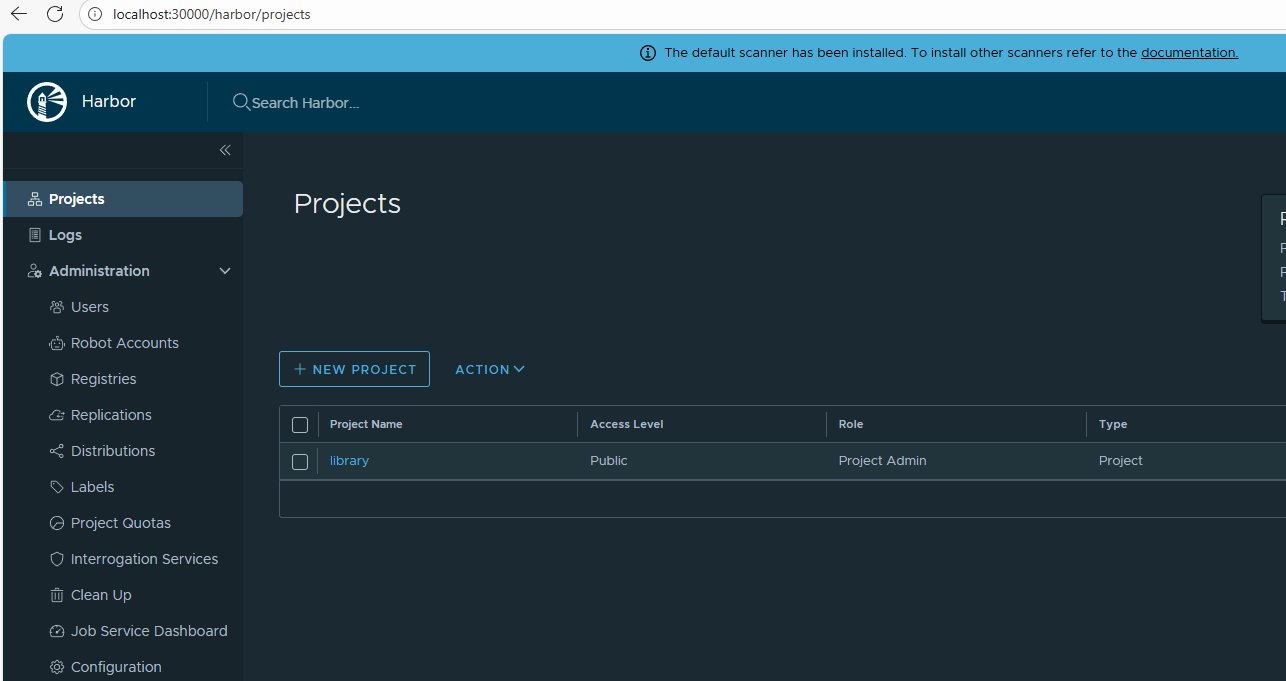
kubectl -n harbor rollout status deploy/harbor-corePOD가 모두 올라오는데 3~5분 가량 소요되며, 완료 후 Windows Host에서 웹브라우저에 localhost:30000 주소로 harbor 접속 확인
Windows Host에 docker 엔진 구성
# 관리자 PowerShell 실행 후 수행
# Windows Feature 활성화로 인해 재부팅이 필요할 수 있음
$script = "$env:TEMP\install-docker-ce.ps1"
iwr -UseBasicParsing `
  https://raw.githubusercontent.com/microsoft/Windows-Containers/Main/helpful_tools/Install-DockerCE/install-docker-ce.ps1 `
  -OutFile $script
powershell -ExecutionPolicy Bypass -File $script -Force


Enabling Hyper-V containers by default for Client SKU
...
Installing Docker daemon... C:\Users\user\DockerDownloads\docker-28.5.1\docker\dockerd.exe
Configuring the docker service...
Waiting for Docker daemon...
Successfully connected to Docker Daemon.
The following images are present on this machine:
REPOSITORY   TAG       IMAGE ID   CREATED   SIZE

Script complete!
Windows Host에서 Dockerfile 빌드 및 Harbor Push 수행
(주의사항) Windows는 기본 이미지 자체가 용량이 크기 때문에 잔여 디스크 용량과 메모리 등을 미리 고려해야 한다.
PS C:\Users\user\Desttop\harbor_test> docker images
REPOSITORY                              TAG        IMAGE ID       CREATED              SIZE
mcr.microsoft.com/windows/servercore ltsc2022 46309081d30a 9 days ago 3.31GB참고 : microsoft/windows-servercore - Docker Image | Docker Hub
Windows Host에서 간단한 윈도우 컨테이너 이미지를 빌드, 실행해보고, 해당 이미지를 이전에 구성한 Harbor에 push해보았다.
# =============================================
# Harbor 테스트용 Windows 컨테이너 빌드 & 푸시
# =============================================

# 1. 작업 디렉터리 준비
$WorkDir = "$home\Desttop\harbor_test"
New-Item -ItemType Directory -Force -Path $WorkDir | Out-Null
Set-Location $WorkDir

# 2. Dockerfile 생성
@'
# Windows Server Core 기반 (호스트와 동일 또는 하위 호환 버전 사용)
FROM mcr.microsoft.com/windows/servercore:ltsc2022

SHELL ["powershell", "-Command"]

# 간단한 PowerShell 스크립트 생성
RUN New-Item -Path C:\app -ItemType Directory ; \
    Set-Content -Path C:\app\hello.ps1 -Value 'Write-Host "Hello from Windows Container via Harbor!"'

# 기본 실행 명령
CMD ["powershell.exe", "-File", "C:\\app\\hello.ps1"]
'@ | Out-File -Encoding ASCII "$WorkDir\Dockerfile"

Write-Host "Dockerfile 생성 완료: $WorkDir\Dockerfile"

# 3. 이미지 태그 및 이름 설정
$ImageName = "localhost:30000/library/hello-windows:latest"

# 4. 빌드 수행
Write-Host "이미지를 빌드합니다..."
docker build -t $ImageName .
# 실행 내용
Sending build context to Docker daemon  2.048kB
Step 1/4 : FROM mcr.microsoft.com/windows/servercore:ltsc2022
ltsc2022: Pulling from windows/servercore
425c2915a651: Pulling fs layer
425c2915a651: Verifying Checksum
425c2915a651: Download complete
425c2915a651: Pull complete
Digest: sha256:418d8d0c6e026e5131e48f4d71ca66e9564c31b50f02b740235d32145a55c6ea
Status: Downloaded newer image for mcr.microsoft.com/windows/servercore:ltsc2022
 ---> 46309081d30a
Step 2/4 : SHELL ["powershell", "-Command"]
 ---> Running in c49ad5cfe09d
 ---> Removed intermediate container c49ad5cfe09d
 ---> 50758f1dc553
Step 3/4 : RUN New-Item -Path C:\app -ItemType Directory ;     Set-Content -Path C:\app\hello.ps1 -Value 'Write-Host "Hello from Windows Container via Harbor!"'
 ---> Running in 980d5677ca19


    Directory: C:\


Mode                 LastWriteTime         Length Name
----                 -------------         ------ ----
d-----        10/19/2025   2:20 AM                app


 ---> Removed intermediate container 980d5677ca19
 ---> a79673ee68ac
Step 4/4 : CMD ["powershell.exe", "-File", "C:\\app\\hello.ps1"]
 ---> Running in bd5700be2130
 ---> Removed intermediate container bd5700be2130
 ---> c707fa8f8da3
Successfully built c707fa8f8da3
Successfully tagged localhost:30000/library/hello-windows:latest

PS C:\Users\user\Desttop\harbor_test> docker images
REPOSITORY                              TAG        IMAGE ID       CREATED              SIZE
localhost:30000/library/hello-windows   latest     c707fa8f8da3   About a minute ago   3.32GB
mcr.microsoft.com/windows/servercore ltsc2022 46309081d30a 9 days ago 3.31GB# 5. 컨테이너를 실행하여 테스트"
docker run --rm $ImageName
PS C:\Users\user\Desttop\harbor_test> docker run --rm $ImageName
Hello from Windows Container via Harbor!
# 6. Harbor 로그인
docker login localhost:30000
# 7. Push 수행
docker push $ImageName
PS C:\Users\user\Desttop\harbor_test> docker push $ImageName
The push refers to repository [localhost:30000/library/hello-windows]
72b101c6c4d3: Pushed
746e5a0aee52: Pushed
ad51195ff0ab: Pushed
636e121f90b0: Pushed
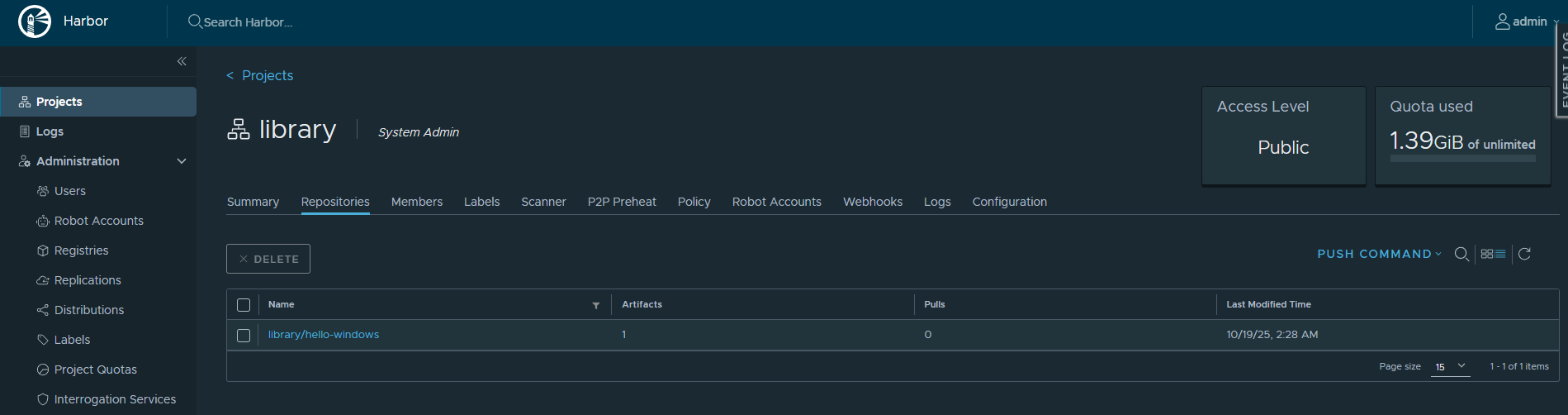
latest: digest: sha256:99826eb410d75b9fc2c36dfba548912a0f3398cb41363206b7d39e94f7538189 size: 1157Harbor에 로그인해 push된 이미지 확인